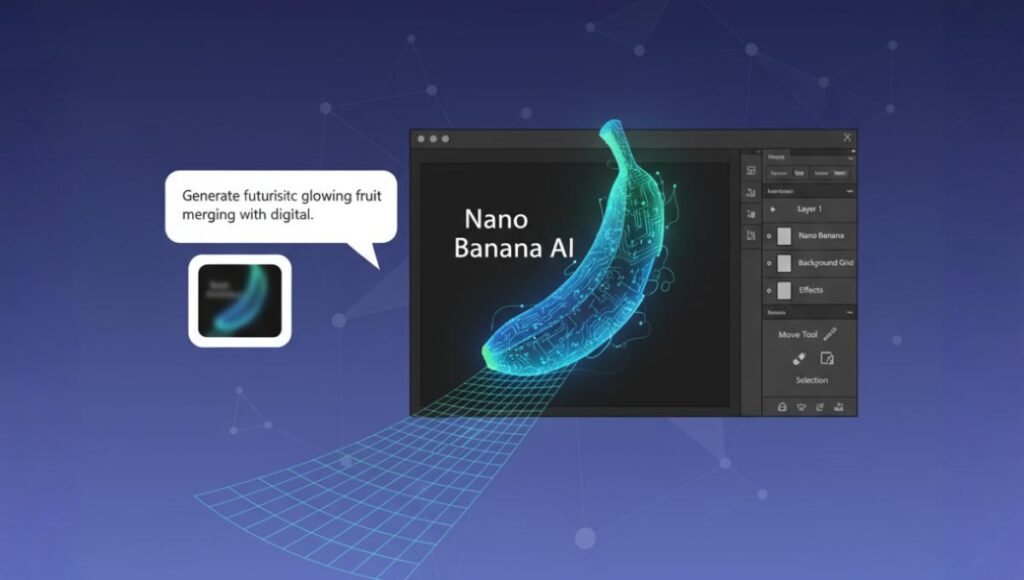
Designers are always on the lookout for tools that make their creative process faster, smoother, and more efficient. In 2025, Nano Banana has emerged as one of the most exciting AI image generation platforms — especially when integrated with tools like Adobe Photoshop. If you’re a designer, marketer, or creative professional, combining Nano Banana’s AI-powered image generation with Photoshop’s editing flexibility can be a game-changer.
This guide will walk you through the step-by-step process of using Nano Banana in Photoshop, highlight key benefits, and provide practical tips for a faster workflow.
Why Use Nano Banana with Photoshop?
Nano Banana is not just another AI art generator — it’s built with speed, accessibility, and real-world usability in mind. Here’s why pairing it with Photoshop makes sense:
Quick AI Generations
Nano Banana can instantly generate visuals from text prompts, saving designers hours of stock image hunting.
Seamless Creativity
While Nano Banana produces stunning AI images, Photoshop allows you to refine, retouch, and align them with branding guidelines.
Boosting Productivity
Instead of starting from scratch, designers can use Nano Banana’s AI outputs as a base canvas inside Photoshop.
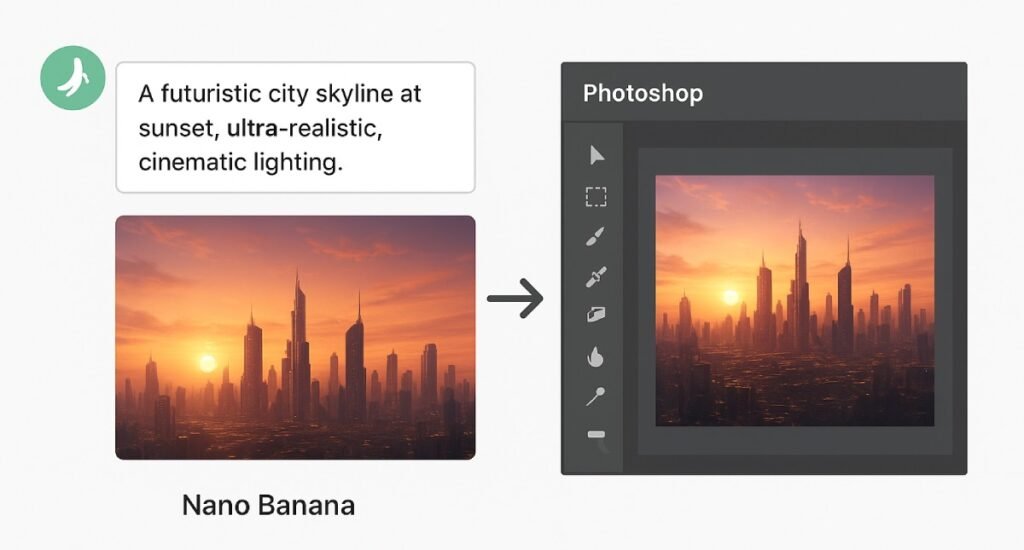
Step-by-Step Guide to Using Nano Banana in Photoshop
Step 1 – Generate Your Image in Nano Banana
- Open the Nano Banana app or WhatsApp integration.
- Enter a creative prompt (e.g., “A futuristic city skyline at sunset, ultra-realistic”).
- Save the generated image in high resolution.
Step 2 – Import Image into Photoshop
- Open Photoshop.
- Drag and drop the AI-generated image from Nano Banana into your workspace.
- Create a new layer for edits.
Step 3 – Refine the Details
- Use Photoshop’s Retouch Tools (Spot Healing, Clone Stamp, Dodge/Burn) to polish details.
- Adjust color grading using Curves, Hue/Saturation, or LUTs for brand consistency.
Step 4 – Combine with Existing Projects
- Incorporate Nano Banana visuals into banners, ad creatives, website designs, or print layouts.
- Use layer masks and blending modes to integrate AI images naturally.
Step 5 – Export for Use
- Export the final design in web- or print-ready formats (JPEG, PNG, or PDF).
Tips for a Faster Workflow
Optimize Your Prompts
Use descriptive text prompts with clear details. Instead of “car,” try:
“A luxury electric car in motion, hyper-realistic, cinematic lighting.”
Save Presets in Photoshop
Create Photoshop actions for repetitive tasks (like resizing or color adjustments) to speed up edits.
Maintain a Prompt Library
Keep a list of your best-performing Nano Banana prompts so you don’t start from scratch every time.
Use Smart Objects
Import Nano Banana outputs as smart objects to retain quality while making non-destructive edits.
Advantages of Using Nano Banana with Photoshop
- Saves hours of design time.
- Reduces reliance on stock photo subscriptions.
- Encourages unique, custom visuals.
- Improves workflow speed for social media creatives, websites, and campaigns.
- Allows creative control over AI-generated results.
Limitations to Be Aware Of
While Nano Banana is powerful, there are some caveats:
- AI-generated images may require post-editing to remove artifacts.
- Copyright and usage rights are still evolving — always double-check.
- Complex compositions may need multiple prompt refinements.
Final Thoughts
For designers in 2025, Nano Banana + Photoshop = creative superpower. While Nano Banana handles the speedy image generation, Photoshop ensures your designs are polished, brand-ready, and professional.
If you’re looking to streamline your creative workflow, reduce project turnaround time, and stand out with original visuals, this combo is one of the best ways forward.
👉 Also read:
FAQs: Nano Banana in Photoshop
Nano Banana is a generative AI tool that integrates with Photoshop to help designers create realistic images, concepts, and edits faster without heavy manual work.
It speeds up tasks like background replacement, concept visualization, and image generation. Instead of spending hours designing from scratch, Nano Banana can generate base visuals that designers refine in Photoshop.
Yes, beginners can easily use Nano Banana inside Photoshop. Its AI-powered prompts simplify complex edits, making professional results possible without advanced design skills.
While Photoshop has native AI features (like Generative Fill), Nano Banana offers faster outputs, more prompt flexibility, and often higher realism, making it a complementary tool rather than a replacement.
Nano Banana works best with the latest versions of Photoshop (2024 and above) to ensure smooth plugin integration and compatibility with AI-powered features.
Designers save time, increase creativity, and can deliver projects faster. For instance, agencies can generate quick mockups, product visuals, or social media creatives in minutes.
Yes, as long as you disclose AI usage and avoid misleading visuals, Nano Banana-generated edits can be ethical. Many brands now encourage transparent AI-assisted workflows.
No, Nano Banana enhances Photoshop but doesn’t replace it. It generates base visuals, but designers still rely on Photoshop for advanced editing, precision, and final polish.